
Cameras
You must access to Process an RMA/DOA. It is essential to attach the purchase invoice of the equipment along with a detailed description of the failure. You can add a video if you wish. Once received, our support team will contact you to solve the problem.
Executing the PING command on your PC.
First check the IP address of your camera. It is displayed through the HDMI or SDI output of the equipment when you turn it on.
In the Windows browser, run the "cmd" application.

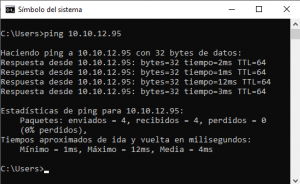
The command prompt will open and you will need to enter ping followed by the IP address of your camera and press Enter. If the command displays an image similar to the one below, there is IP communication with the camera.
First check that your computer is on the same network segment as the camera.
To do this, go to the local area connection properties window and select "Internet Protocol version 4 (TCP/IPv4)" > Properties.

Then under "Advanced" > Add, enter an IP - and its network mask - that is in the same range as that of the camera. For example: (192.168.5.12 / 255.255.255.255.0).

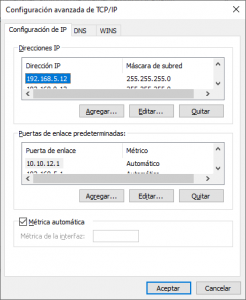
NOTE: The added IP cannot coincide with another IP assigned to another device in the same network. It is recommended to check beforehand that this IP is not in use.
Once these steps have been carried out, it would be advisable to check that the PC and the camera are connected by PING.
Once we have a direct connection with the camera we have to enter the IP of the camera in a web browser and when requesting the default credentials are the following:
User: admin
Password: admin
Camera default IPS
MODEL | IP Address |
Cute 12/30X | Cute 12/20X AI | Cute 4K AI | Broadcaster AI | Broadcaster AI | 192.168.5.163 |
Cute 4K Total | Broadcaster | 192.168.100.82 |
Broadcaster 30X | Broadcaster Bullet | 192.168.100.88 |
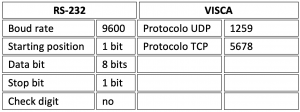
Models using UDP protocol: Cute 12X, Cute 30X
Models using the TCP protocol: Cute 4K Total, Broadcasters
Check that the selector is indicating the required resolution (a little wheel on the back of the camera).
VIDEO SYSTEM | |||
0 | 1080P60 | 8 | 720P30 |
1 | 1080P50 | 9 | 720P25 |
2 | 1080i60 | A | 1080P59.94 |
3 | 1080i50 | B | 1080i59.94 |
4 | 720P60 | C | 1080P29.97 |
5 | 720P50 | D | 576i |
6 | 1080P30 | E | 480i |
7 | 1080P25 | F | 720P59.94 |
The following are some aspects that could indicate that the camera is faulty and an RMA/DOA needs to be processed:
- When the camera is turned on, it does not perform the complete self-test. (The camera must rotate to one side and the other to finally be in the centered position (preset 0).
- An error message appears in the displayed video.
- When the image it provides is not stable or sharp.
Open VLC, Media > Open Network Location:
Rtsp://<dirección IP>:554/1

You need to update the firmware. In this LINK you will download a ZIP file with the firmware and instructions on how to do it.
IMPORTANT: THIS ONLY APPLIES for Cute 12X cameras with MCU Version 3.2.x. If your camera has an MCU version 3.1.4 it does not apply.
In the TP1 menu, -we recommend that it be via web- (easier and more practical):
Configuration > Other > Update:
- Enable the options:
* Activate update
* Check new version at startup
* Forcing an update
> Select mode: HTTP Server.
> URL: http://update.laiatech.com/TP1
Check the new version now.
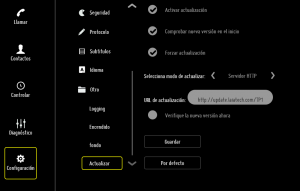
After clicking on Save, the computer will be updated and restarted in a few minutes.
Open VLC, Media > Open Network Location:
Rtsp://<dirección IP>:554/1
You need to update the firmware. In this LINK you will download a ZIP file with the firmware and instructions on how to do it.
IMPORTANT: THIS ONLY APPLIES for Cute 12X cameras with MCU Version 3.2.x. If your camera has an MCU version 3.1.4 it does not apply.
In the TP1 menu, -we recommend that it be via web- (easier and more practical):
Configuration > Other > Update:
- Enable the options:
* Activate update
* Check new version at startup
* Forcing an update
> Select mode: HTTP Server.
> URL: http://update.laiatech.com/TP1
Check the new version now.
After clicking on Save, the computer will be updated and restarted in a few minutes.
To find out what each button on your camera's remote control is for, download our "Camera Remote Controls Manual" PDF, search for your camera model and view detailed instructions.